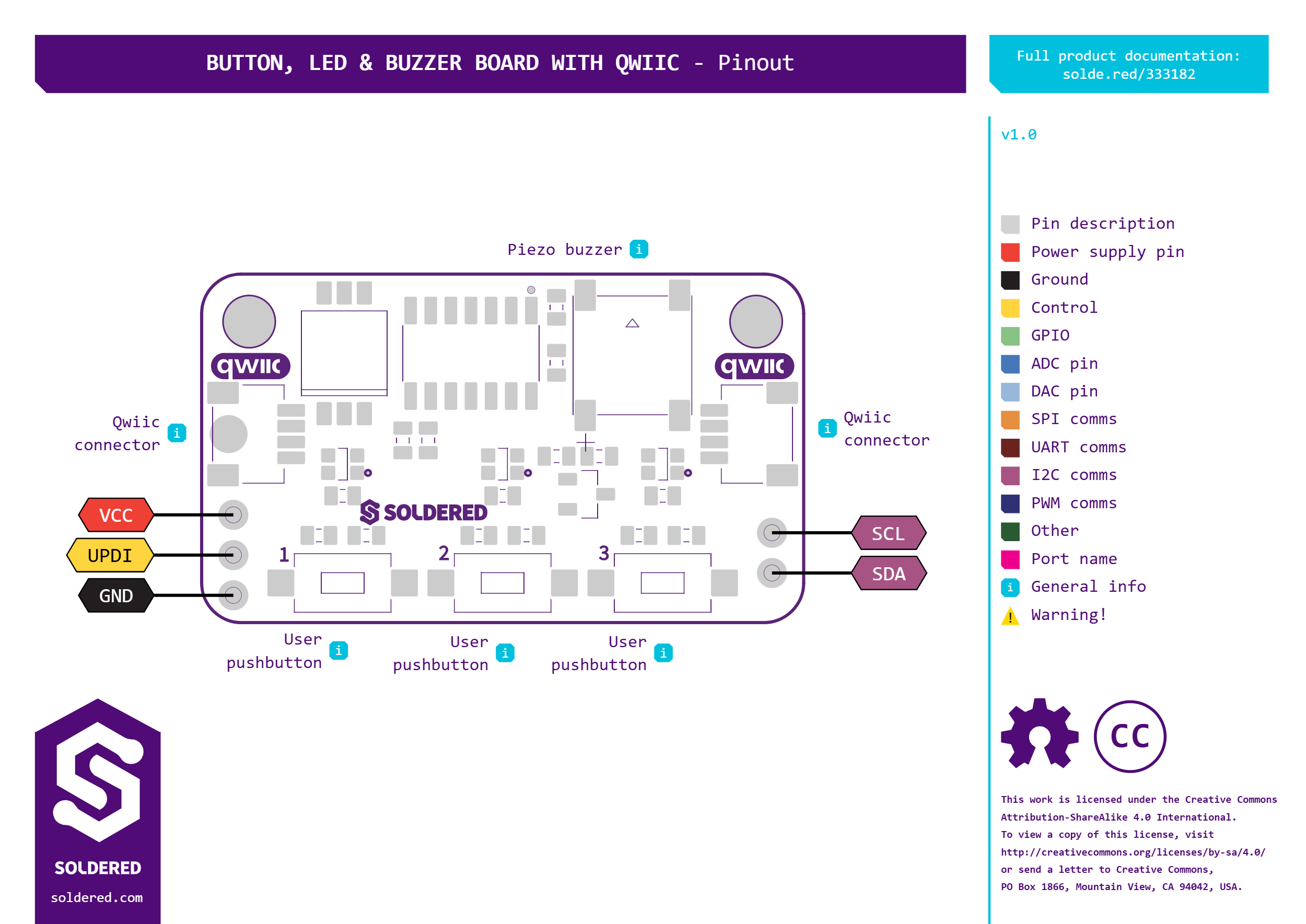
Soldered Button, LED & Buzzer Board with Qwiic
Three pushbuttons, three WS2812B RGB LEDs and a passive buzzer on one I2C board with Qwiic connectors and eight selectable addresses.
The Button, LED & Buzzer Board with Qwiic puts three pushbuttons, three RGB LEDs and a buzzer on one small board. An onboard ATtiny404 handles all of them, so your microcontroller needs only the two I2C lines.
Connect it with a Qwiic cable, no soldering needed. Your code reads which buttons are pressed, sets each of the three WS2812B LEDs to any colour, and plays a tone on the passive buzzer at the frequency you choose, in Hz.
Three switches on the board set the I2C address, from 0x30 to 0x37. You can put up to eight boards on the same bus, and the second Qwiic connector passes the bus on to the next one.
The Soldered Arduino library handles the I2C communication for you and comes with examples for the buttons, the LEDs and the buzzer.
Note:
- The board runs on 3.3 V, supplied through the Qwiic connector.
- With all three switches set to OFF, the board uses the default address 0x30.
- Controller: ATtiny404 (I2C slave)
- Inputs: 3 pushbuttons with 10 kΩ pull-up resistors and 100 nF debounce capacitors
- LEDs: 3 × WS2812B-2020 RGB, 8 bits per colour channel
- Buzzer: passive magnetic buzzer (MLT-7525), transistor driven, frequency set in Hz
- Interface: I2C, default address 0x30
- Address selection: 3-position DIP switch, 0x30 - 0x37
- Connectors: 2 × Qwiic, 2-pin SDA/SCL header, UPDI header for the ATtiny404 firmware
- I2C pull-ups: 10 kΩ onboard
- Supply voltage: 3.3 V
- Dimensions: 38 × 22 mm
- Mounting holes: 2 × 3.2 mm
Interface
| Interface | I2C |
|---|---|
| Qwiic Compatible | Yes |
| I2C Address Default | 0x30 |
| I2C Address Changeable | Yes |
| Breadboard Compatible | Yes |
Power
| Supply Voltage Min V | 3.3 |
|---|---|
| Supply Voltage Max V | 2.3 |
Other
| Ic Part Number | WS2812B-2020 |
|---|---|
| Mcu Part Number | ATTINY404 |
Plug into any Soldered Dasduino or microcontroller with an easyC cable — no soldering required.
Add the Soldered library for your language (below).
Open the get-started example and read your first value.